
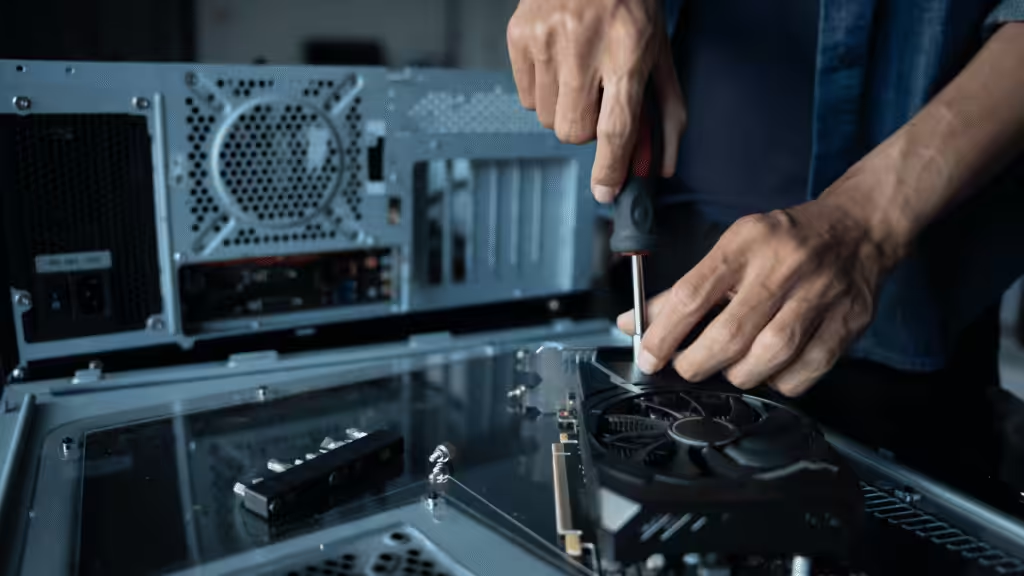
A badly installed CPU heatsink can make a good cooler perform like a bad one.
From our experience working with heatsinks and thermal interfaces, a capable heatsink can still perform poorly when contact pressure is uneven, the thermal paste layer is poorly controlled, or airflow is blocked.
This guide shows you how to install and remove Intel, AMD, stock, and aftermarket CPU heatsinks step by step. You’ll also learn how to fix a stuck cooler, apply thermal paste correctly, and avoid the most common installation mistakes.
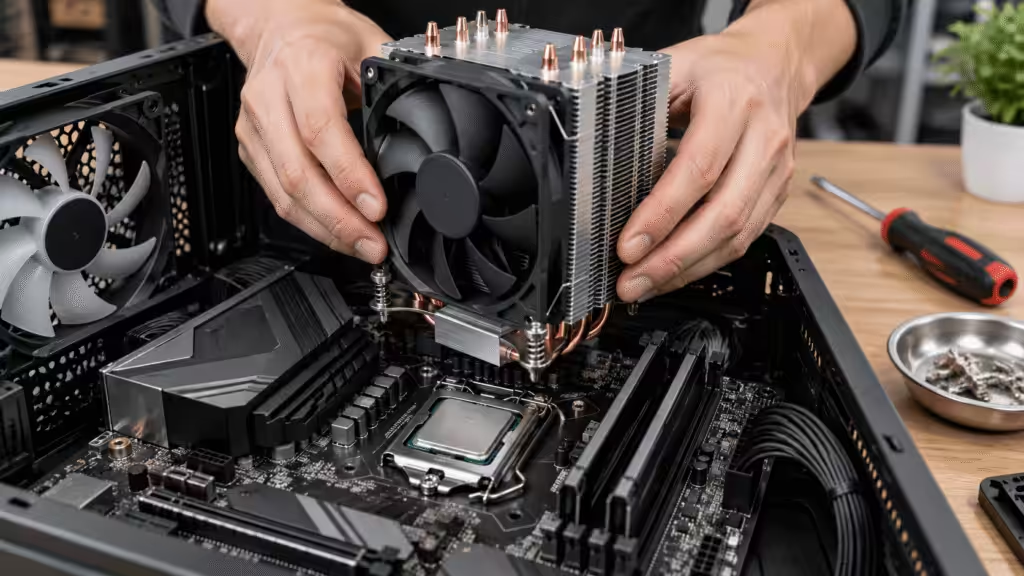
Quick Answer: How Do You Install or Remove a CPU Heatsink?
To install a CPU heatsink, check compatibility first. Clean the CPU, apply thermal paste if needed, and place the heatsink in position. Tighten it evenly, then connect the fan to the CPU_FAN header.
To remove a CPU heatsink, warm the old thermal paste if needed. Shut down and unplug the PC. Disconnect the fan, release the mount, gently twist the cooler, and lift it off.
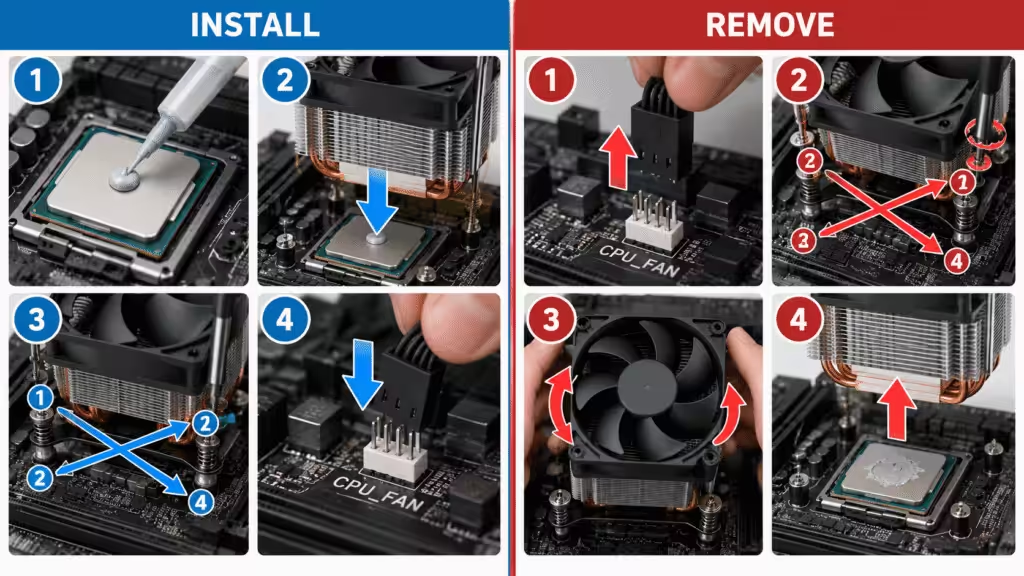
If the heatsink feels stuck, do not pull it straight up with force. Old thermal paste can create a strong bond between the CPU and cooler.
Before You Install or Remove a CPU Heatsink
Preparing the tools and checking the mounting system first can prevent most installation problems.
Tools and Materials You May Need
| Item | Purpose |
|---|---|
| Phillips screwdriver | Screw-mounted coolers |
| Isopropyl alcohol | Remove old thermal paste |
| Lint-free cloth | Clean CPU and heatsink |
| Thermal paste | Required if no usable TIM is present |
| Anti-static wrist strap | Reduce ESD risk |
| Cooler mounting hardware | Backplate, bracket, screws and spacers |
Keep the motherboard and cooler manuals nearby if the mounting system is unfamiliar.
Shut Down and Prepare the PC Safely
Shut down the computer, switch off the power supply, and unplug the power cable before touching the cooler.
Use an anti-static wrist strap or discharge static electricity by touching the metal chassis.
If you are removing an old heatsink, running the computer for a few minutes beforehand can soften hardened thermal paste. Shut it down completely before starting the removal.
Check CPU Socket and Heatsink Compatibility
Confirm that the heatsink supports your exact CPU socket. For socket-specific requirements, always check the processor manufacturer’s cooler installation instructions before mounting the heatsink.
Intel and AMD platforms use different brackets, spacers, backplates, and mounting patterns. Even coolers that support several sockets may require a socket-specific installation kit.
Also check RAM clearance, case height, motherboard components, and fan clearance.
Do You Need to Remove the Motherboard First?
Not always.
The deciding factor is usually whether you can access the cooler backplate and mounting hardware inside the case.
When You Can Install the Heatsink Inside the Case
You can normally leave the motherboard installed when the case has a large rear CPU access opening or the cooler uses mounting hardware already attached to the motherboard.
Stock coolers and many smaller aftermarket models can be installed this way.
Make sure you still have enough space to align the heatsink correctly and tighten it evenly.
When You Need Access to the Motherboard Backplate
Some aftermarket CPU coolers use a separate backplate.
If the case does not provide access behind the CPU socket, removing the motherboard may make installation easier and reduce the risk of misaligned hardware.
Do not improvise with a loose or incorrectly positioned backplate.
Installing a CPU Heatsink on an Open Test Bench
An open test bench gives you easier access to both sides of the motherboard.
The same approach may be used when troubleshooting a breadboard computer setup outside the case.
Place the motherboard on a rigid, non-conductive surface and make sure a heavy tower cooler cannot tip or bend the board.
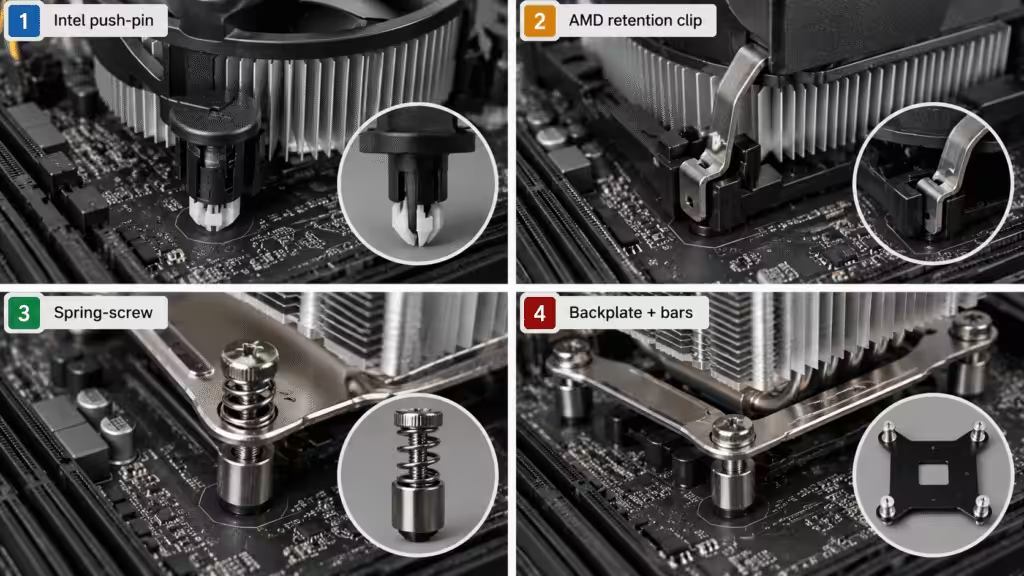
Identify Your CPU Heatsink Mounting Type
Before installing or removing anything, identify the mounting mechanism.
| Mounting Type | Typical Use | Locking Method |
|---|---|---|
| Push pin | Intel stock cooler | Push pins |
| Retention clip | AMD-style coolers | Clip and lever |
| Spring screw | Intel, AMD and aftermarket | Spring-loaded screws |
| Backplate mount | Aftermarket tower cooler | Bracket and screws |
Intel Push-Pin Heatsinks
Intel push-pin heatsinks use four mounting pins that pass through the motherboard.
Align all four before pressing them into place.
A diagonal installation sequence helps distribute pressure more evenly.
AMD Retention-Clip Heatsinks
These coolers attach to the motherboard retention frame.
One clip is engaged first, followed by the opposite side. A lever then applies the final clamping force.
Make sure both clips are correctly attached before locking the lever.
Spring-Screw Heatsinks
Spring screws help control mounting pressure.
Engage all screws first, then tighten them gradually in a diagonal sequence.
Avoid fully tightening one screw while the others remain loose.
Backplate-Mounted Heatsinks
Large aftermarket coolers often use a separate backplate, spacers, mounting bars, and screws.
The exact hardware varies by manufacturer, so always follow the manual for your cooler model and CPU socket.
How to Install a CPU Heatsink Step by Step
The goal is to create a clean, flat thermal interface with even mounting pressure.
Step 1: Check the CPU and Mounting Hardware
Make sure the CPU is correctly seated and locked in the socket.
Lay out all brackets, screws, spacers, and the backplate before applying thermal paste.
This reduces the chance of discovering a missing part halfway through installation.
Step 2: Install the Backplate or Mounting Bracket
Install the backplate or bracket according to the cooler instructions.
Keep the backplate centered and flat against the motherboard.
Do not substitute spacers or screws from another mounting kit simply because they appear similar.
Step 3: Clean the CPU and Heatsink Contact Surfaces
Remove old thermal paste from both the CPU heat spreader and heatsink base.
Use isopropyl alcohol and a lint-free cloth, then allow the surfaces to dry.
A clean interface matters because contamination, dried paste, or uneven residue can increase contact thermal resistance.
Step 4: Check for Pre-Applied Thermal Paste
Inspect the bottom of the heatsink.
Many stock and aftermarket coolers already include factory-applied thermal interface material.
If the material is clean and untouched, do not add another layer on top of it.
Step 5: Apply Thermal Paste If Needed
Apply thermal paste only when the heatsink does not have usable pre-applied material.
The purpose of thermal interface material (TIM) is to fill microscopic gaps between two surfaces, not to create a thick thermal layer.
In our own heatsink assembly experience, improving the thermal interface can make a measurable difference. Under comparable conditions, we have observed properly controlled thermal grease reduce interface thermal resistance by roughly 25–30% compared with an untreated contact interface.
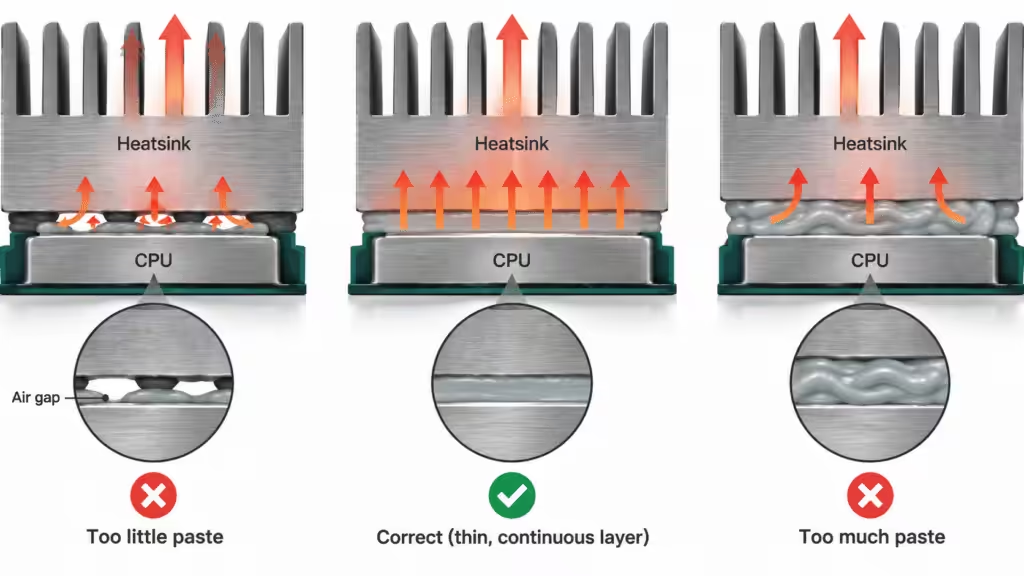
That figure is not a universal CPU performance guarantee. Results depend on paste formulation, contact pressure, surface flatness, temperature, and test method.
The practical rule is simple: use enough paste to fill surface imperfections, but avoid an unnecessarily thick layer.
Step 6: Position the Heatsink Over the CPU
Align the cooler with the mounting points and lower it directly onto the CPU.
Try to establish full contact in one controlled movement.
Avoid repeatedly sliding the heatsink after it touches the thermal paste.
From a thermal engineering perspective, effective contact area is critical. Even a high-conductivity heatsink performs poorly when the interface is only partially seated.
Step 7: Tighten or Lock the Heatsink Evenly
Engage all mounting points before fully tightening them.
For a four-screw system, use a diagonal pattern:
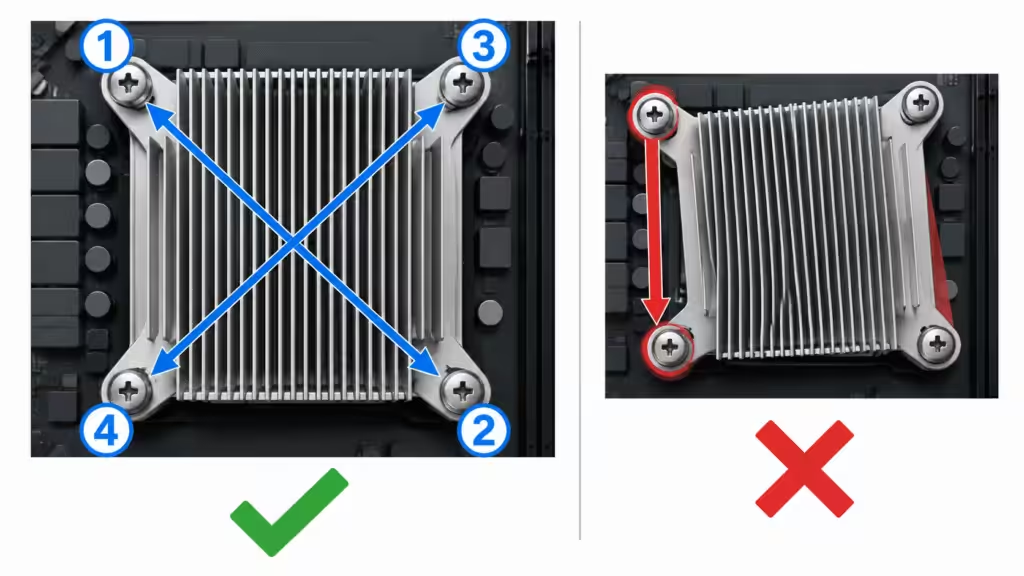
Top left → bottom right → top right → bottom left
Repeat the sequence gradually until the cooler is secure.
This matches what we see in other semiconductor-to-heatsink assemblies: consistent fastening pressure helps maintain a more uniform contact interface.
Do not overtighten the cooler. Use the manufacturer’s torque specification when one is provided.
Step 8: Position the CPU Fan for Proper Airflow
For a typical tower cooler, position the fan so that air moves through the heatsink toward the rear or top case exhaust.
Look for airflow arrows on the fan housing if necessary.
The same principle applies to larger industrial heatsinks: fin geometry and airflow direction should work together, and forced airflow should generally move along the fin channels rather than across them.
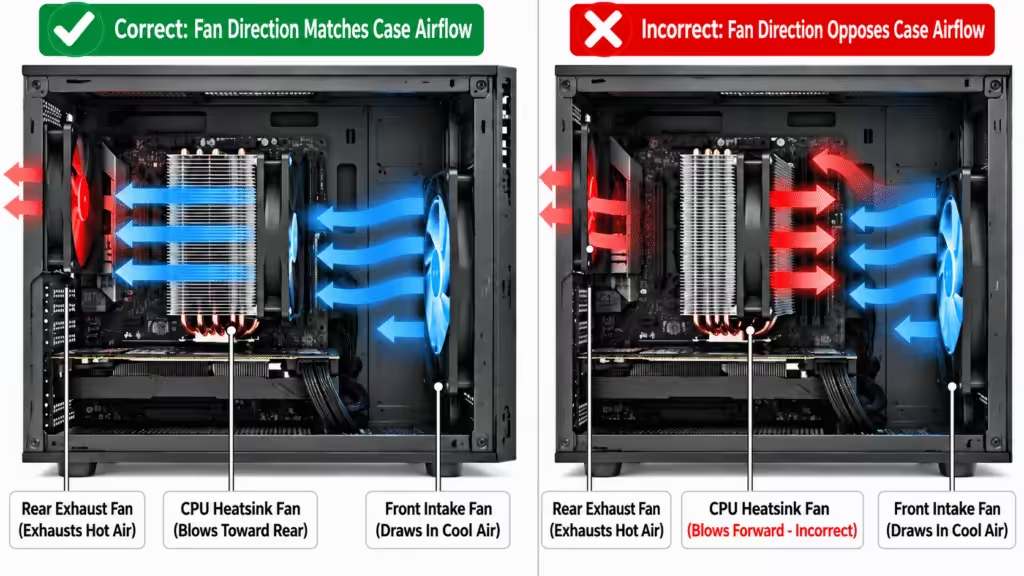
This reduces airflow resistance and allows more air to pass through the cooling surface.
Step 9: Connect the Fan to the CPU_FAN Header
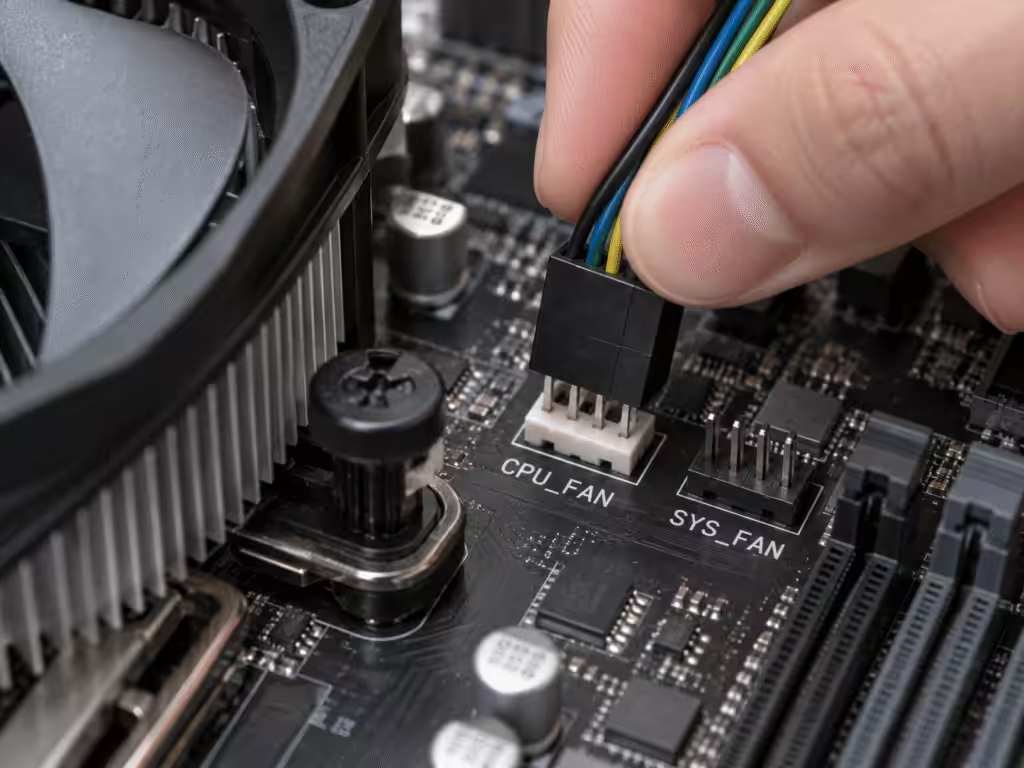
Connect the cooler fan to the motherboard header marked CPU_FAN.
Using the correct header allows the motherboard to monitor fan speed and control the fan based on CPU temperature.
Connect RGB or ARGB cables separately if the cooler includes lighting.
Step 10: Check That the Heatsink Is Secure
Before turning the PC on, check that:
- the cooler sits flat;
- all mounting points are engaged;
- screws are tightened evenly;
- the fan cable is connected;
- cables do not touch the fan blades;
- the cooler does not rock when touched gently.
Once these checks are complete, you can power the system on.
Intel vs. AMD CPU Heatsink Installation
The thermal principles are similar, but the mounting hardware differs.
How to Install an Intel Push-Pin CPU Heatsink
Align the four push pins with the motherboard holes. If you’re using an Intel stock cooler, you can also check Intel’s Laminar RM1/RS1 cooler installation instructions for the official push-pin sequence.
Lower the cooler onto the CPU without disturbing the thermal paste.
Push opposite corners down in a diagonal sequence until the pins lock.
Check that all four pins are fully engaged before connecting the fan.
How to Install an AMD Retention-Clip CPU Heatsink
AMD stock coolers commonly use retention clips or spring screws. For platform-specific steps, see AMD’s official CPU cooler installation and removal guide.
Position the cooler over the CPU and hook the first side of the retention clip onto the motherboard bracket.
Engage the opposite side while keeping the cooler level.
Once both sides are attached, move the locking lever into position.
How to Install an AMD Spring-Screw Cooler
Align the cooler with the motherboard backplate.
Start all four screws before tightening them.
Tighten diagonally in small increments so that mounting pressure develops evenly across the CPU.
How to Install an Aftermarket CPU Heatsink
Aftermarket coolers vary widely.
Most use a combination of a backplate, socket-specific spacers, mounting bars, and spring-loaded screws.
Follow the exact manual for your cooler revision and socket rather than assuming another model uses the same hardware.
How to Remove a CPU Heatsink Safely
Removal requires care because old thermal paste can make the CPU and heatsink stick together.
Step 1: Warm the Thermal Paste
If the PC is operating normally, run it for a few minutes before removal.
The goal is only to warm the thermal interface slightly.
This can make old paste easier to separate.
Step 2: Shut Down and Disconnect the PC
Shut down the computer.
Switch off the PSU and unplug the power cable.
Never release a CPU heatsink while the system is powered.
Step 3: Disconnect the CPU Fan Cable
Disconnect the CPU_FAN cable before moving the cooler.
Also remove any RGB, USB, or control cables connected to the cooler.
Pull on the connector rather than the wires.
Step 4: Release the Mounting Mechanism
Release the mounting system according to its type.
Unlock push pins, release retention clips, or begin loosening the mounting screws.
Do not pull the heatsink upward yet.
Step 5: Loosen the Screws Evenly
For screw-mounted coolers, loosen the fasteners gradually.
Use the same diagonal approach used during installation.
This prevents an abrupt pressure change across the CPU and motherboard.
Step 6: Gently Twist the Heatsink
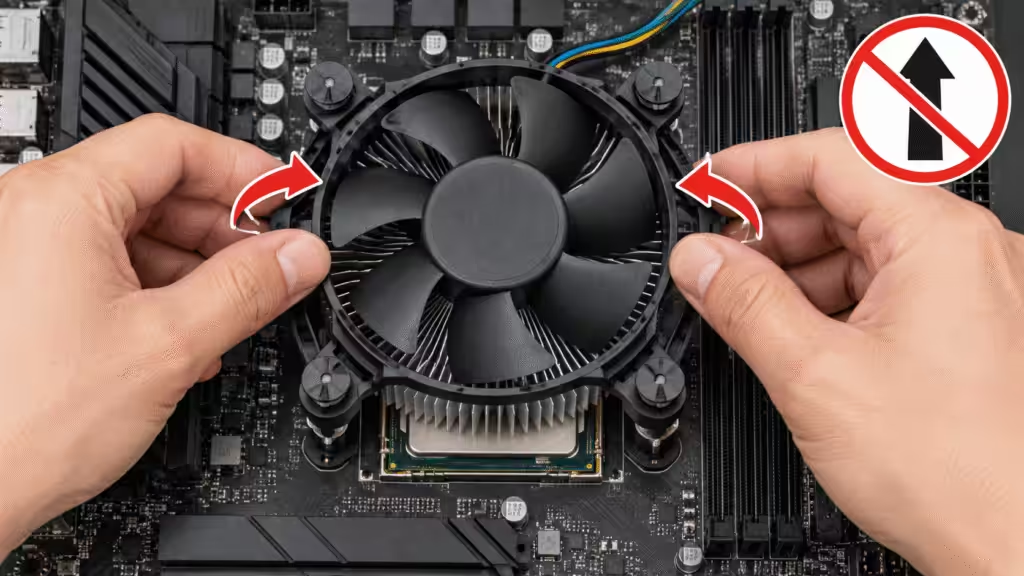
Once the mounting hardware is released, rotate the heatsink slightly left and right.
This small twisting motion helps break the bond created by old thermal paste.
Do not use excessive force.
Step 7: Lift the Heatsink Away
When you feel the thermal interface release, lift the cooler vertically and slowly.
If it still feels stuck, stop and repeat the warming and twisting process.
Do not pry the heatsink off with a screwdriver.
Step 8: Remove the Old Thermal Paste
Clean the old paste from both the CPU and heatsink base.
Use isopropyl alcohol and a lint-free cloth.
Allow both surfaces to dry before reinstalling the cooler.
How to Remove a Stuck CPU Heatsink
A stuck heatsink is normally caused by an old thermal interface creating a strong seal.
Why Does a CPU Heatsink Get Stuck?
Thermal paste fills microscopic surface irregularities.
After years of thermal cycling, some compounds become harder and more resistant to separation.
A large flat surface combined with mounting pressure can make the cooler feel bonded to the CPU.
Warm the Thermal Paste Before Removing It
Run the system briefly if it is safe to do so.
Then shut it down, unplug the power, and try the removal again.
Slightly warmer thermal paste is often easier to release.
Twist the Cooler Instead of Pulling Straight Up
A small rotational movement applies shear force across the thermal interface.
This is usually more effective than pulling vertically.
Keep the movement gentle.
What You Should Never Do With a Stuck Heatsink
Do not:
- yank the cooler upward;
- pry between the CPU and heatsink with metal tools;
- pour solvent into the socket;
- twist the cooler aggressively;
- work on the system while it is powered.
The goal is to release the thermal interface without damaging the CPU or motherboard.
What If the CPU Comes Out With the Heatsink?
This can happen with some older PGA-style processors when hardened paste holds the CPU tightly to the cooler.
Do not push the CPU back into the socket while it is still attached to the heatsink.
Place the assembly safely, inspect the pins, and separate the CPU carefully according to the processor manufacturer’s handling guidance.
Do You Need New Thermal Paste?
In most cases, yes.
Once the heatsink has been removed, the original thermal paste layer is no longer uniform.
Can You Reuse Old Thermal Paste?
It is better not to.
Removing the heatsink can leave gaps, thick spots, or trapped air in the original paste.
Clean both surfaces and apply fresh thermal material.
What If the Heatsink Has Pre-Applied Thermal Paste?
If the heatsink is new and the factory-applied TIM is untouched, use it as supplied.
Do not add extra paste.
If the cooler has already been installed and removed, clean the old material before reinstalling it.
How Much Thermal Paste Should You Use?
Use enough material to create full practical coverage after mounting pressure spreads it.
Do not assume that more paste produces better cooling.
Follow the CPU or cooler manufacturer’s recommended application pattern whenever one is provided.
Should You Clean Both the CPU and Heatsink?
Yes.
Both surfaces form the thermal interface.
Leaving dried material on the heatsink base defeats the purpose of cleaning the CPU.
Do You Need to Reinstall Software?
Normally, replacing or reinstalling a CPU heatsink does not require software changes.
Do You Need to Reinstall Windows?
No.
Changing the CPU heatsink does not affect your Windows installation.
If the computer does not boot afterward, first check the cooler installation, CPU fan connection, RAM, and power cables.
Do You Need to Reinstall CPU or GPU Drivers?
No.
You do not need to reinstall CPU drivers, GPU drivers, NVIDIA GeForce Experience, or perform a clean installation of NVIDIA drivers after replacing a CPU heatsink.
The cooler is a mechanical and thermal component.
If a GPU problem appears immediately after working inside the case, check whether the graphics card or power cables were disturbed.
7 Common CPU Heatsink Installation Mistakes
A good heatsink can still perform badly when installed incorrectly.
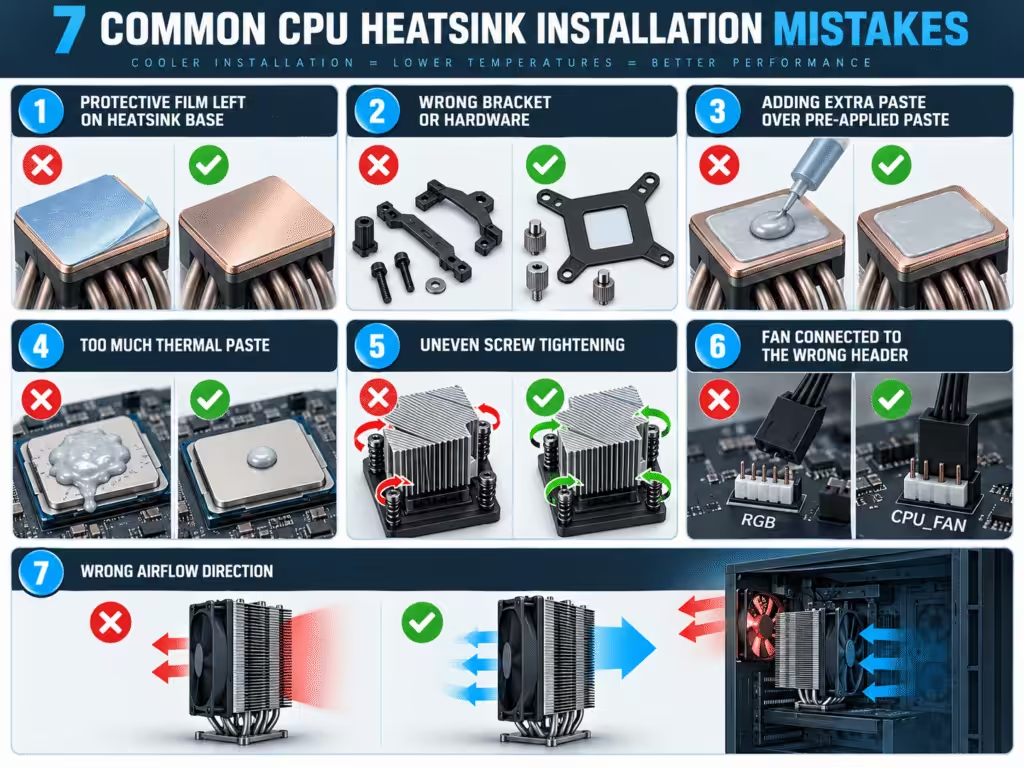
1. Forgetting to Remove the Protective Film
Some aftermarket heatsinks have a plastic protective film on the contact surface.
Remove it before installation.
Leaving it in place creates a major thermal barrier.
2. Using the Wrong Mounting Hardware
Different CPU sockets often use different screws, spacers, or brackets.
Using the wrong components can change mounting pressure or prevent full CPU contact.
3. Adding Paste Over Pre-Applied Thermal Paste
Do not add another layer when clean factory-applied thermal material is already present.
More thermal material does not automatically improve heat transfer.
4. Applying Too Much Thermal Paste
An unnecessarily thick layer can increase interface thickness and squeeze beyond the processor surface.
The goal is to fill microscopic gaps, not create a thick coating.
5. Tightening the Heatsink Unevenly
Uneven mounting pressure can tilt the heatsink and reduce contact quality.
Tighten screws gradually and diagonally.
This is one of the most important installation principles we use in heatsink assemblies.
6. Using the Wrong Fan Header
Connect the CPU fan to CPU_FAN unless the motherboard manufacturer says otherwise.
This allows correct fan monitoring and control.
7. Installing the Fan in the Wrong Direction
For most tower coolers, airflow should travel through the heatsink toward the case exhaust.
Avoid configurations where the CPU fan works against the main chassis airflow.
Check Your CPU Heatsink After Installation
A short post-installation check can catch mounting problems before they become overheating problems.
Check That the CPU Fan Is Spinning
Turn the system on and confirm that the CPU fan operates.
If it does not, check the CPU_FAN connection and make sure nothing is blocking the blades.
Check CPU Temperature in BIOS
Enter the BIOS or UEFI and find the CPU temperature reading.
Watch for a temperature that rises rapidly and continuously.
If that happens, shut the system down and inspect the cooler installation.
Monitor CPU Temperature in Windows
After the BIOS check, boot into Windows and monitor CPU temperature.
Modern processors can show short temperature spikes as clock speed and voltage change.
Look at overall behavior rather than a single instant reading.
Run a Short CPU Load Test
Apply a moderate CPU workload for several minutes.
Watch temperature and fan speed.
The processor should reach a controlled operating temperature without immediate thermal throttling or shutdown.
What If CPU Temperature Is Too High?
Check the thermal path in order:
CPU → thermal paste → heatsink → fins → airflow
If you need to size a heatsink rather than simply reinstall one, start by calculating the required heat sink thermal resistance under the actual airflow condition.
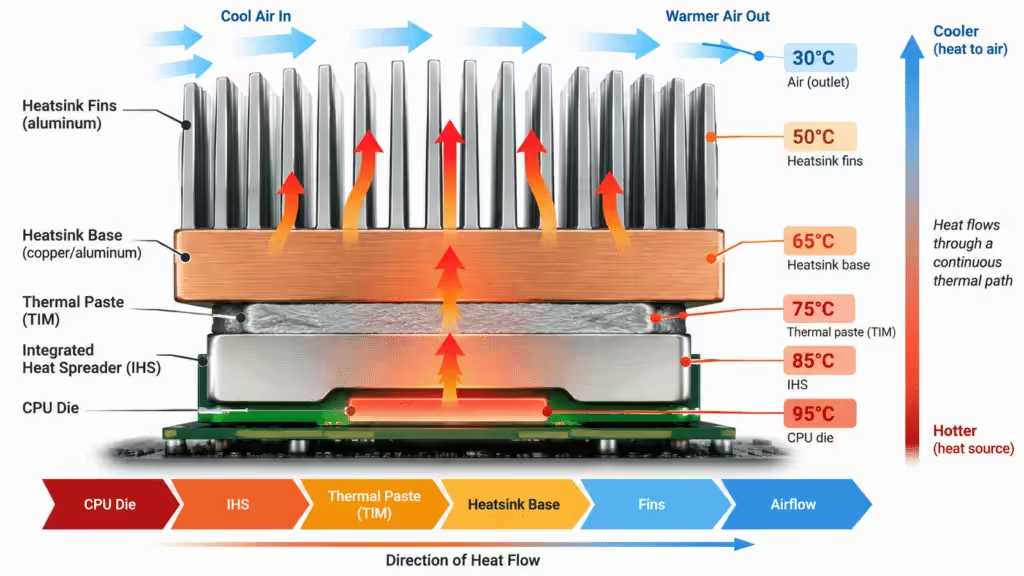
Confirm that:
- the cooler is seated correctly;
- mounting pressure is even;
- thermal paste is properly applied;
- the fan is running;
- case airflow is not blocked;
- the heatsink has enough cooling capacity for the CPU.
CPU Heatsink Installation and Removal FAQs
Can I install a CPU heatsink without removing the motherboard?
Yes, in many cases.
If you can access the mounting hardware and backplate from inside the case, motherboard removal is unnecessary.
Can I remove a CPU heatsink without removing the CPU?
Yes.
Normally, the CPU remains locked in its socket while the heatsink is removed.
Twist the cooler gently before lifting if the thermal paste is stuck.
Can you run a CPU without a heatsink?
You should not.
Desktop CPUs generate concentrated heat and require a suitable cooling solution during operation.
Do you need thermal paste with a CPU heatsink?
Yes, unless suitable thermal interface material has already been factory-applied to the heatsink.
Do not add extra paste over fresh pre-applied material.
Do I need new thermal paste after removing a heatsink?
Normally, yes.
Clean the old material and create a fresh thermal interface before reinstalling the cooler.
How tight should CPU heatsink screws be?
Follow the cooler manufacturer’s instructions or torque specification.
For spring-loaded systems, tighten the screws evenly until the mounting mechanism reaches its intended position.
Do not overtighten.
Why is my CPU heatsink stuck?
Old thermal paste may have hardened and formed a strong seal.
Warm the system briefly, shut it down, release the mounting hardware, and gently twist the cooler before lifting.
Do I need to reinstall drivers after replacing a CPU heatsink?
No.
Replacing a CPU heatsink does not require Windows, CPU, chipset, AMD, Intel, or NVIDIA driver reinstallation.
What to Do After Installing Your CPU Heatsink
After installation, check three things: the CPU fan is running, the BIOS temperature looks normal, and the system stays stable under a short load test.
If the CPU still runs hot, check the mounting contact first. A larger cooler will not fix poor contact pressure, too much thermal interface material, or blocked airflow.
The same rule applies to larger cooling systems. Good thermal performance depends on the full setup, including contact area, mounting pressure, thermal interface material, fin direction, airflow, and heat sink design.
Need a Custom Heatsink for Your Project?
If you are designing cooling for servers, power electronics, EV systems, or industrial equipment, explore our custom aluminum heat sink solutions.
Share your heat load, airflow, mounting requirements, and available space with our engineering team. We can help develop a heatsink that fits both your thermal and mechanical requirements.