
To check CPU temperature on a Windows PC, open a compatible monitoring tool such as HWiNFO, enter its Sensors window, and locate the temperature readings under your processor. Check both the current reading and the recorded maximum while your usual workload is running. You can also check BIOS/UEFI on supported systems, or use AMD Ryzen Master on a supported desktop Ryzen PC.
Knowing how to check CPU temperature is useful when a computer becomes noisy, slows down during demanding work, or behaves differently after a cooler replacement. The useful result is a temperature reading tied to a specific processor, sensor and workload.
This guide covers Windows 11 and Windows 10 PCs. Menu names and available sensors vary with the hardware and software version.
Choose a Method to Check CPU Temperature
| Method | Best use | Main limitation |
|---|---|---|
| HWiNFO Sensors | Watching temperature in Windows and recording a workload | Sensor availability depends on the hardware |
| BIOS/UEFI hardware monitor | A quick check before Windows loads | Cannot show temperatures during a Windows game or application |
| AMD Ryzen Master | Monitoring a supported desktop Ryzen processor | Requires a supported processor, platform and software version |
For troubleshooting a problem that appears during gaming, rendering or compiling, start with monitoring inside Windows.
Method 1: Check CPU Temperature with HWiNFO
Open the processor’s sensor readings
- Download HWiNFO from its official download page. Choose the appropriate Windows installer or portable package. The current 64-bit and ARM64 editions are free for non-commercial use; business users should check the applicable license.
- Launch the application. If the startup window offers Sensors-only, select it and start the scan. Otherwise, open Sensors from the main interface.
- Find the section containing your CPU’s model name. Several processor-related groups may appear.
- Locate the temperature rows, then read the Current and Maximum columns. Keep the application open while you reproduce the workload you want to investigate.
Which CPU temperature should you read?
On many Intel systems, CPU Package provides a package-level reading; individual Core entries show specific cores. Core Max identifies the hottest core at that sampling moment.
On many AMD Ryzen systems, look for CPU (Tctl/Tdie). If separate Tctl and Tdie rows appear, Tctl may include a control offset; use the sensor definition for that processor when interpreting it.
A motherboard entry simply called CPU may use a different measurement source. HWiNFO’s author explains these distinctions in the CPU temperature sensor guide. Record the exact row name so later comparisons use the same sensor.
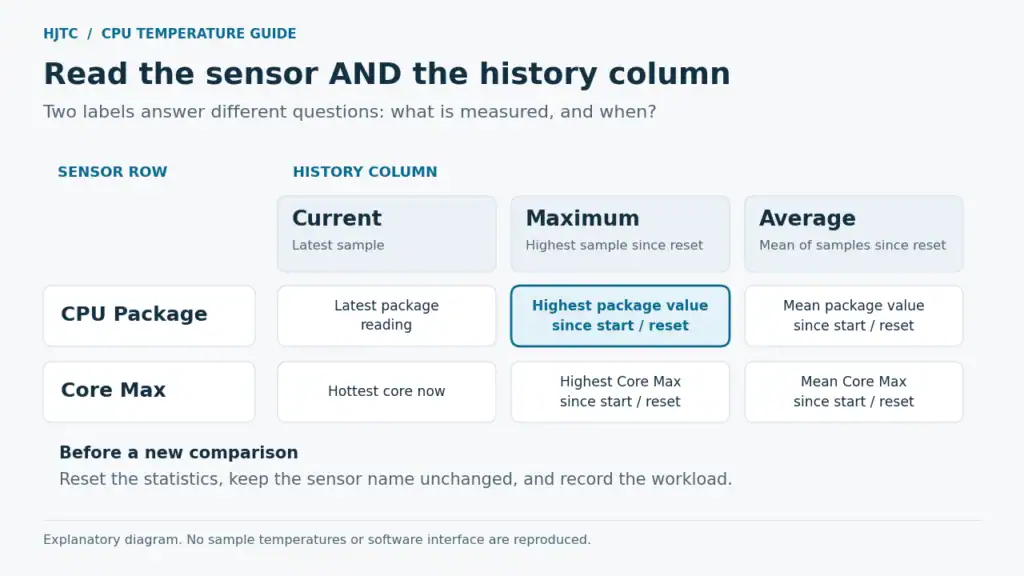
Understand Current, Minimum, Maximum and Average
| Column | What it tells you |
|---|---|
| Current | The latest sampled value |
| Minimum | The lowest sampled value since monitoring began or the statistics were reset |
| Maximum | The highest sampled value over that same period |
| Average | The average of the sampled values during that period |
The Average column covers the monitoring period. Leaving the tool running through a long idle period can lower that average. Reset the statistics before a new comparison.
Also distinguish Core Max, a sensor row, from Maximum, a history column. Selecting the right row and the right column answers two different questions: what is being measured, and when?
Method 2: Check CPU Temperature in BIOS/UEFI
BIOS/UEFI can provide a quick reading without installing a Windows monitoring application, if your computer exposes that sensor.
- Save your work and restart the computer.
- Press the setup key specified by your PC or motherboard manufacturer during startup. Common examples are Delete and F2.
- Look for a page such as Monitor, Hardware Monitor or PC Health, and locate the CPU temperature.
- Note the reading and exit without changing settings.
For example, the ASUS W790 BIOS manual documents a Monitor menu. Other systems use different layouts, and some do not display CPU temperature in firmware.
On supported PCs, you can also use Windows’ Advanced startup → Restart now option, followed by Troubleshoot → Advanced options → UEFI Firmware Settings → Restart. Dell describes this route in its UEFI access instructions.
A firmware reading is a snapshot under firmware operating conditions. It does not establish how hot the CPU becomes during your Windows workload.
Method 3: Use AMD Ryzen Master on a Supported Desktop
AMD Ryzen Master includes processor temperature monitoring. AMD provides different downloads for different processor generations, so select the release intended for your hardware.
- Confirm that your processor and platform are supported by that release.
- Install and open Ryzen Master.
- Open its monitoring dashboard and locate CPU Temperature. AMD’s gauge documentation identifies this as the current processor temperature.
- Observe it during your normal workload without applying tuning or overclocking changes.
This method is intended for supported desktop platforms. For a laptop or unsupported processor, use a compatible monitoring utility or the PC manufacturer’s supported tool.
How to Check CPU Temperature While Gaming or Working
Opening a temperature tool after closing a game can miss the condition you wanted to measure. Start monitoring before the workload, and preserve its history.
For a repeatable first check:
- Record the setup. Note the CPU model, cooler, room temperature, power mode and exact sensor name.
- Take a baseline. Observe the machine during a quiet period, while checking whether background tasks are still using the processor.
- Reset the statistics and start logging. Use the clock/reset control in HWiNFO’s Sensors window, then the logging control to choose a file location. A CSV log lets you review values over time.
- Run a representative task. Start with 10–15 minutes of the game or application that causes the problem. This is a practical observation window, not proof of thermal equilibrium or a complete stability test.
- Review the pattern. Look at the peak, sustained readings, fan behavior and any thermal-throttling indication available. Extend observation if temperatures are still climbing and the system remains within its operating limits. Stop logging when the observation ends, then review the saved file.
Keep the workload and settings consistent when comparing before and after a cooling change. Stop the workload if the system repeatedly shuts down or reports an overheating fault.
What Is a Normal CPU Temperature?
There is no single temperature range that applies to every processor and every workload. Intel’s temperature guidance specifically explains that typical operating temperatures depend on the system and workload.
Find the specification for your exact CPU. Intel explains where to find its processor thermal limits. For AMD, check the model’s product specifications: for example, the Ryzen 9 7950X lists a 95°C Tjmax. That figure belongs to that model and is not a recommended temperature target for every PC.
Tjunction/Tjmax and Tcase are different specifications. A core or junction sensor reading should not be compared directly with a case-temperature limit. If your documentation provides only Tcase, consult the processor or system vendor’s guidance for the relevant sensor.
Use the behavior of the system to guide the next check:
| Observation | Useful next step |
|---|---|
| A short peak when an application opens, followed by a drop | Check the longer workload trend before diagnosing a fault |
| Sustained high readings with thermal throttling or lost performance | Review cooling, workload and power settings against the model’s guidance |
| A sudden increase after removing or replacing the cooler | Inspect mounting, interface material and fan connections |
| An implausible value or missing reading | Check sensor support and compare with a manufacturer-supported utility |
A lower clock speed alone does not prove overheating; power limits and the workload can also affect it. Temperature history and thermal-status indicators provide better context together.
What to Check If CPU Temperature Is Too High
Start with the parts of the cooling system that can explain the change you observed.
- Airflow: Inspect vents, filters and fin passages for dust or blockage. Confirm that intake air can reach the cooler and warmed air can leave the enclosure.
- Fans and pumps: Check operation and connections. For liquid cooling, follow the cooler manufacturer’s instructions for pump and radiator-fan checks.
- Mounting contact: If the problem started after assembly, inspect the correct brackets, even fastening and any protective film on the cooler base. Follow our CPU heatsink installation and removal guide for the mechanical sequence.
- Thermal interface: Follow the cooler’s instructions for paste or other thermal interface materials. Adding more material is not automatically an improvement.
- Operating settings: Compare against the manufacturer’s supported settings, especially after a power-profile or overclocking change.
These checks align with Intel’s overheating troubleshooting guidance. Shut down and disconnect power before mechanical work; use the OEM’s service procedure for laptops and prebuilt systems.
If installation and airflow are correct but the required workload still exceeds the cooling system’s capability, review the available heat sink types and cooling methods.
An Engineering Example: One CPU Reading Cannot Describe a Whole Enclosure
HJTC’s server and communications cooling reference materials include an air-cooled router/switch example with different cooling structures for neighboring components:
- The CPU, listed with a 135 W TDP, uses AL1100 aluminum fins and heat pipes. Its referenced cooler envelope is 82 × 85.6 × 18.83 mm.
- The switching chip, listed at 450 W, uses C1100 copper fins and a C1020 copper vapor chamber. Its referenced cooler envelope is 138.6 × 137.6 × 30.07 mm.
These are application reference specifications, not measured CPU temperatures or a controlled comparison of cooling performance. The CPU’s TDP and the switching chip’s stated power also should not be treated as identical measurement definitions.
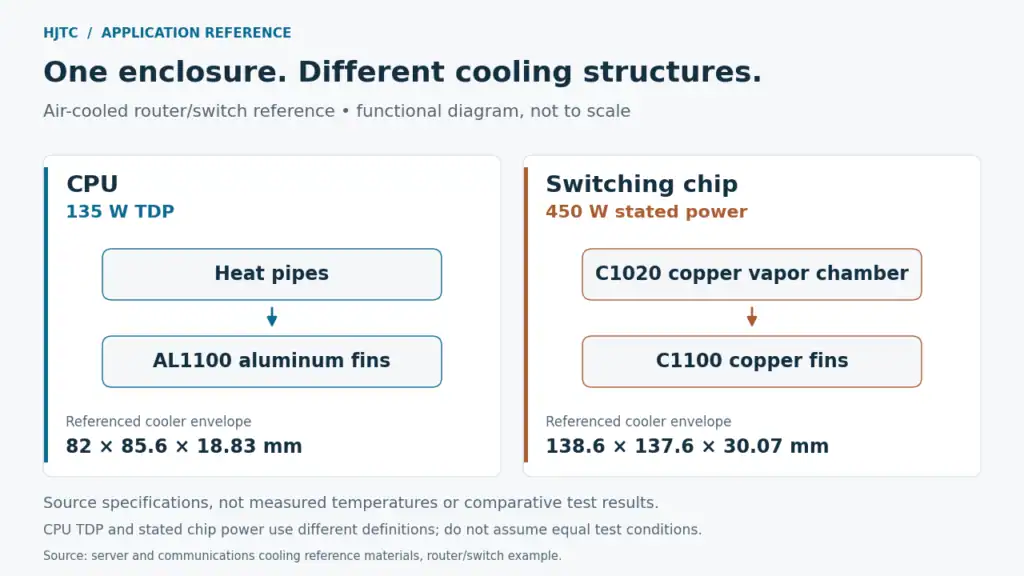
The engineering lesson is that a CPU temperature reading describes one part of a larger thermal system. It does not establish whether a neighboring chip is within its limit, or identify which interface, airflow restriction or cooling component needs attention.
For a custom design, combine temperature logs with the actual component power, inlet-air conditions, mounting footprint, available height and airflow. HJTC’s heat sink design guide explains how those constraints inform the cooling arrangement.
CPU Temperature FAQs
Can I check CPU temperature without installing software?
Yes, if your BIOS/UEFI or an already-installed manufacturer utility exposes it. BIOS is useful for an initial check; monitoring within Windows is needed to capture a Windows workload.
Can Task Manager’s GPU temperature tell me the CPU temperature?
No. A GPU temperature entry describes the graphics processor. Use an identified CPU sensor in a compatible monitoring tool for the processor reading.
Is 90°C too hot for a CPU?
The answer depends on the exact CPU, workload and system design. Compare it with that model’s thermal specification and check for sustained throttling or instability. Do not use 90°C as a universal pass/fail threshold.
Why do two monitoring tools show different temperatures?
They may read different sensors, apply different offsets, or update and average readings differently. Compare the sensor definitions and the same workload period before concluding that one tool is wrong.
Does a high temperature mean I need a bigger heat sink?
Not necessarily. Poor contact, blocked airflow or a fan problem can limit an otherwise suitable cooler. Check the installation first, then evaluate cooling capacity under the required operating conditions.
Need Help with a Custom CPU Cooling Assembly?
If you are developing a server, networking product or industrial computer, bring the measurements into the design discussion. Share the processor model, sensor name, temperature log, actual power data, inlet-air temperature, available space and fan arrangement.
Explore HJTC’s custom heat sink solutions, or contact HJTC with your cooling requirements. Those details provide a useful starting point for reviewing the complete cooling assembly.